 Easy Twin
Scan any worksheet with your iPhone camera
Easy Twin starts with a photo: point your iPhone at a school worksheet, homework page, or test and the document camera finds the edges for you. It works with single pages and multi-page packets, and if a page is too blurry to read, the app tells you honestly and gives the scan back.

What problem does scanning solve for parents?
Scanning means you never retype a worksheet. The page your child brought home already shows exactly what the teacher is working on this week, and a photo is the fastest way to hand that to Easy Twin. There is nothing to set up first: no grade to pick, no subject menu, no topic list. The app reads the page and works out the subject, the approximate grade level, and the specific skill behind every question on its own.
How does scan a worksheet work?
Tap the scan button
From your library, tap the scan button to open the document camera, or choose a photo you already took from your library.
Frame the page
Hold your phone above the worksheet. The edges snap into place automatically, and you can keep going to add more pages of a packet.
Check and save
Retake any page that looks off before you save. Only clear pages go in.
Let Easy Twin read it
The app reads every printed question, works out the skill each one practices, and starts writing the twin.

What makes a good scan?
A good scan is flat, evenly lit, and shows the whole page. These habits make the biggest difference:
- Lay the page flat on a table rather than holding it in the air.
- Use even light. Avoid a lamp that throws your phone's shadow across the text.
- Hold the phone directly above the page, and wait for the outline to snap to the edges before it captures.
- Keep the whole page in frame, including the first and last question.
- Dense page with tiny print? Scan it on its own rather than as part of a long packet.
Handwriting, teacher marks, scores, and doodles are fine. Easy Twin is told to ignore them and read only the printed questions, so a page that has already been filled in and graded still works.
What happens if a page is hard to read?
Easy Twin checks readability before it writes anything, and it never guesses at words it can't read. If some questions are blurry, dark, or cut off, it skips just those and adds a short note on the worksheet saying which ones and why. If it can't read the page with confidence at all, it returns no questions, refunds the scan automatically, and shows a tip for retaking the photo (better light, flatten the page, whole sheet in frame). You never pay for a page the app couldn't use.
When do parents use scan a worksheet?
A worksheet came home with mistakes
Scan the graded page as it is. The red marks and your child's answers are ignored, and the twin gives fresh versions of every question, including the ones they missed.
The night before a test
Scan the study guide or last week's quiz and you have a new set of questions on the same skills in a few moments, instead of re-reading the old answers.
A thick homework packet
Scan the pages you care about into one worksheet. Each page is one scan, so you choose how much of a packet to twin.
What should I expect after scanning?
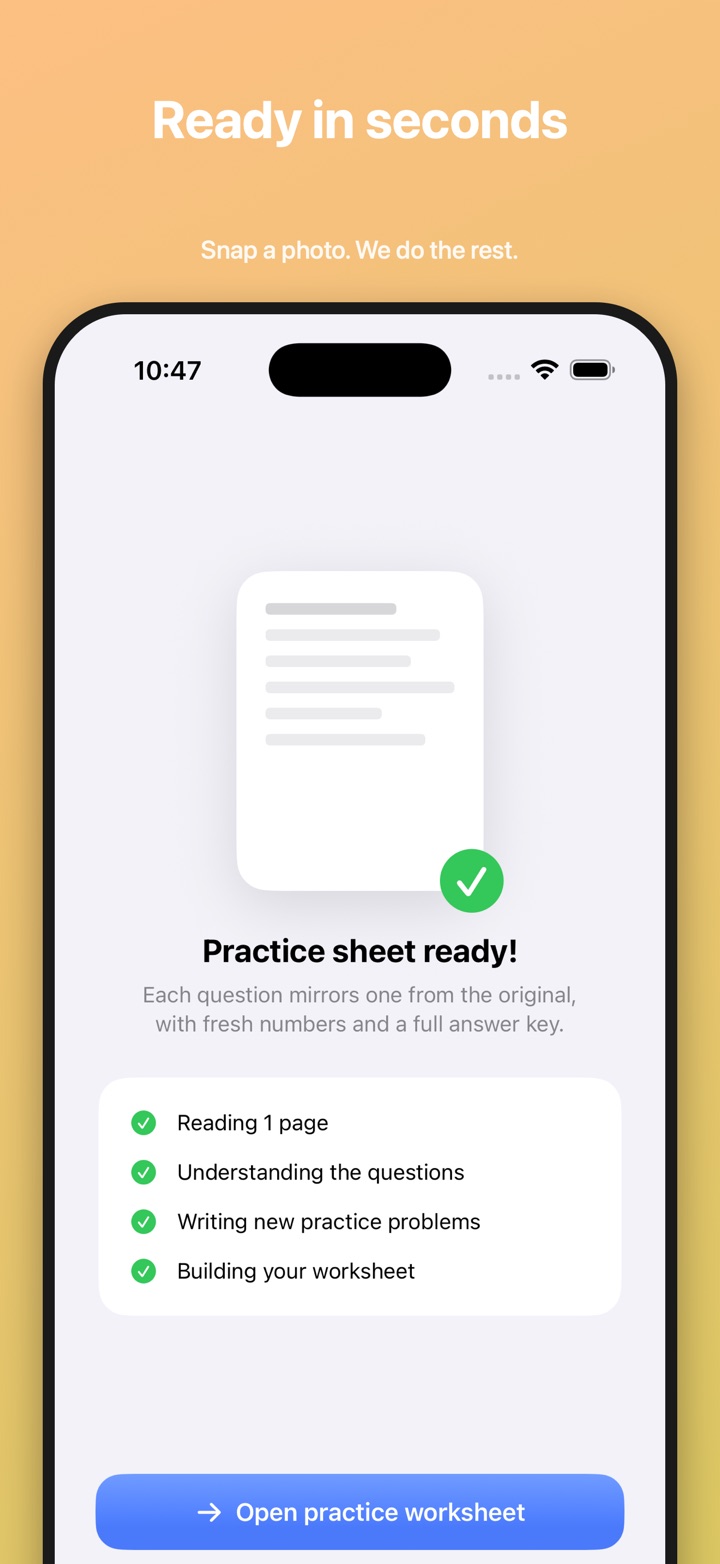
After you tap Save, the app shows its progress in plain steps: reading the page, understanding the questions, writing new practice problems, and building your worksheet. Then the twin opens, organized in your library by subject and grade. One scan uses one credit per page, charged when generation starts and refunded if it fails. See how pricing and credits work for the details.
Frequently asked questions
What kinds of pages can I scan?
You can scan printed worksheets, homework pages, workbook pages, quizzes, and tests with printed questions. Handwriting, answers, and teacher marks on the page are ignored, so graded work is fine. Pages that are mostly coloring, tracing, or a single large diagram make weaker twins.
Can I scan a multi-page packet?
Yes. Keep scanning to add more pages to the same worksheet, and each page is mirrored in order. Each page uses one scan, so you decide how many pages of a packet to twin.
Can I use a photo I already took?
Yes. Instead of the camera, choose a photo from your library. The photo picker only shares the images you select with the app.
Does it matter if the worksheet is already filled in?
No. Easy Twin reads only the printed questions and ignores your child's handwritten answers, teacher corrections, scores, and decorations.
What happens if my photo is blurry?
If Easy Twin can't read a page confidently, it returns no questions, refunds the scan automatically, and tells you what would help, such as better light or getting the whole page in frame. If only some questions are unreadable, it skips just those and adds a note saying which ones.
Related features
Twin worksheet generator
Every question rewritten to practice the same skill with new numbers, names, and wording.
Print worksheets
A clean, letter-sized PDF with room to show work and an optional answer key for you.
Interactive practice
Kids play the twin as a quiz with gentle hints, three tries, and forgiving answer checking.
Which subjects and grades does it work with?
Scan a worksheet works across every subject and grade Easy Twin supports, from kindergarten through 8th grade.
Guides for parents
Parent-Teacher Conference Questions to Ask About Math and Reading
The best questions to ask at a parent-teacher conference are specific ones about your child's actual work, like "Which math skill should we practice at home?" and "What do you notice when my child reads aloud?" This guide gives parents questions for math and reading by grade band, a 15-minute way to prepare, how to read report-card language, and a simple two-week plan for turning the teacher's feedback into practice.
Homeschool Worksheet Ideas: Getting More Out of the Curriculum You Already Have
You rarely need a new curriculum to get more practice. This guide shows homeschooling parents how to turn any workbook page into fresh practice, run short mastery checks, and build review into the week, with a simple way to decide between printable and on-screen days.
How to Help Your Child Practice for a Math Test at Home
The best way to help your child practice for a math test at home is short, mixed practice spread over several days, with your child doing the recalling and you giving calm feedback. This guide gives parents a day-by-day plan, questions to ask, and scripts for the moment a child gets stuck.

Try Easy Twin on tonight's worksheet
Download free and get 3 free scans. Scan a page, get a twin, then print it or let your child play it.
Download on theApp StoreRequires iOS 26 or later. Works on iPhone and iPad.
- 3 free scans to start
- No ads, no tracking
- Kindergarten to 8th grade